
Part 1 — Getting started · 01
Welcome to Mainsail¶
Mainsail is an operations resource and scheduling platform. It answers three questions, continuously and for your whole team at once: what is every resource doing, what is it supposed to be doing, and what is about to go wrong.
The heart of the app is a live schedule board — a timeline with one row per resource (an aircraft, a captain, a tug…) showing every assignment, duty period, and disruption as color-coded bars. Around that board, Mainsail keeps three promises:
- It speaks your language. Locations, resource types, activity types, duty types, event types, and custom data fields are all defined by your team, in your terminology — nothing is hard-coded to any one industry.
- It separates plan from reality. Every time and place is tracked three ways — scheduled, estimated, and actual — so a slipping day never rewrites the original plan.
- It checks everything, all the time. A warning engine re-evaluates the whole schedule on every change — double bookings, location mismatches, unfilled crew slots, duty limits, and any custom rule you build — and streams the results live to every signed-in user.
How to use this guide
The guide is one long page, ordered the way you'll meet the app: first the concepts, then the schedule board and daily work, then warnings and rules, and finally the administration screens. Read Parts 1–2 to get productive; dip into the rest when you need it.
- Use the contents sidebar to jump between sections — it tracks where you are as you scroll.
- Use the search box (press / or Ctrl+K anywhere on this page) to find any button, field, or concept by name.
- Words shown like New utilization are exact labels you'll see in the app.
Throughout the guide we use airline examples — aircraft, captains, flights, gates — because that's where Mainsail grew up. Everything applies equally to vessels, vehicles, field crews, or any operation that assigns people and equipment to time-bounded work across locations. Your own installation will show your types and names.
Part 1 — Getting started · 02
The building blocks¶
Six kinds of records make up everything you'll see in Mainsail. Learn these and every screen in the app becomes predictable.
| Building block | What it is | Airline example |
|---|---|---|
| Location | A place where the operation happens. Has a timezone, optional coordinates and region, weekly open hours, and can contain sub-locations. | LAS — Harry Reid International, with gates A12, B3 as sub-locations |
| Resource | A person or piece of equipment you schedule. Every resource belongs to exactly one resource type, which defines its custom data fields. | Tail 245NV (type: Aircraft) · Jane Doe (type: Captain) |
| Utilization | A time-bounded piece of work that resources are assigned to. Its utilization type defines its timeline (time points), crew/equipment positions (slots), data fields, and colors. | Flight 220, a Revenue Flight from CAK to FLL with Captain and First Officer slots |
| Duty | A roster period laid over one or more resources — either on-duty (resources may work during it) or rest (they may not). Defined by a duty type. | A 12-hour Flight Duty covering a two-pilot crew, reporting 06:00 |
| Event | A disruption or notable condition activated on exactly one target — a resource, a location, or a sub-location. Its event type sets its severity: advisory (warns) or blocking (overlapping work cannot happen). | Aircraft Out of Service on tail 245NV · a gate closure on LAS / A12 |
| Warning | An automatically generated flag that something on the schedule conflicts with reality, an event, or a rule. Warnings appear and disappear on their own as the schedule changes. | “Double booked” — tail 245NV assigned to two overlapping flights |
Types vs. records
Notice the pattern: almost everything comes in a type and a record. The type is the template your administrator defines once in Configuration (“Revenue Flight has Out/Off/On/In time points, a required Captain slot, and turns orange when late”); records are the day-to-day instances everyone creates and edits (“Flight 220 on Tuesday”). If a form in Mainsail shows a field, a slot, or a color, it came from the type.
How the blocks connect
- Slots connect utilizations and duties to resources. A utilization type or duty type defines named positions (“Captain”, “Aircraft”), each restricted to particular resource types. Assigning work is filling slots with resources.
- Locations anchor movement. Utilizations (and optionally duties) carry start and end locations. Mainsail projects where each resource will be over time and warns when a leg starts somewhere its aircraft won't be.
- Duties gate work. If a resource type is marked as requiring duty (typical for crew), scheduling it outside an on-duty period draws an advisory warning. A resource may be on only one duty at a time.
- Events shadow targets. While a blocking event is active on a resource or location, overlapping utilizations raise blocking warnings; advisory events warn but let work proceed.
- Rules watch everything. Beyond the built-in checks, custom rules (Part 3) evaluate aggregates, rest, qualifications, and more — on every edit.
When you're unsure what something on screen is, hover it (on the schedule) or check its type name — every list and tooltip in Mainsail shows the type next to the record's own label.
Part 1 — Getting started · 03
Scheduled, estimated, actual¶
This is the single most important idea in Mainsail. Every time point and every location on a record can hold up to three values at once:
Scheduled
The plan of record. Set when the work is planned, and left alone afterwards. This is what the ghost bar on the board shows — it never moves.
Estimated
The current expectation. Delays, diverts, and revised ETAs live here. Estimates can change all day without ever touching the plan.
Actual
What really happened, recorded as it happens. Once an actual is in, that moment of history is frozen — and some actions (like Delay) are no longer offered.
Whenever Mainsail needs one answer — where to draw a bar, which time to show in a list, where a resource will be — it resolves the effective value: actual if recorded, otherwise estimated, otherwise scheduled. Tooltips on the board tag every displayed time with actual, est, or sched so you always know which layer you're looking at.
Locations follow exactly the same pattern: a flight scheduled to land at FLL but diverting to PIE keeps FLL as its scheduled end location and gets PIE as the estimated one — the board's destination chip updates, the plan of record stays intact, and the location-continuity checks use the best truth available.
Because plan and reality are separate layers, you can always see slippage (ghost bar vs. live bar), planning rules can keep evaluating the original schedule, and a late actual never rewrites yesterday's compliance picture.
Part 1 — Getting started · 04
Signing in & sessions¶
Mainsail runs in the browser — there's nothing to install. Your administrator creates your account and gives you your email and initial password.
-
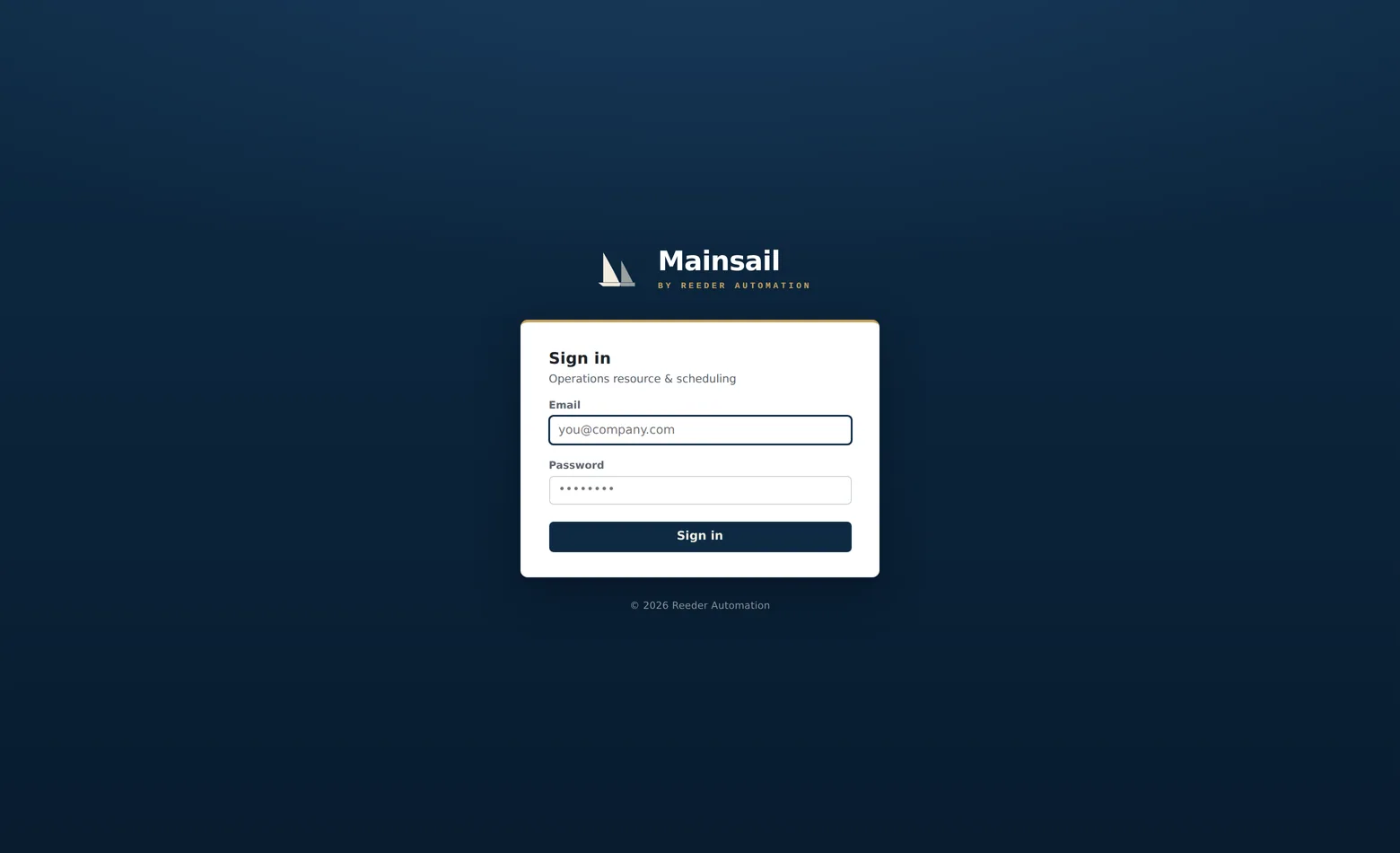
Open your Mainsail address. You'll land on the sign-in screen: the Mainsail mark, a card headed Sign in, and the tagline Operations resource & scheduling.
-
Enter your email and password and press Sign in. While the request runs the button reads Signing in….
-
You land on the Schedule. Every visit to the app starts at the live board.
If something goes wrong
- A wrong email or password shows the same message — “Invalid email or password” — deliberately, so accounts can't be fished for.
- Sign-in attempts are rate-limited to 5 per minute; after that, wait a minute and try again.
- Forgot your password? An administrator can set a new one from the Users page (which also signs you out everywhere, on purpose).
How sessions behave
- Your session survives reloads and browser restarts for up to 30 days. On startup you'll briefly see Loading… while it's checked.
- Behind the scenes the app refreshes its credentials every few minutes — you'll never notice. You are only returned to the sign-in screen when the session is genuinely over: signed out, expired, revoked, or your password was changed.
- Sign out (top-right of every page) ends the session on the server, not just in your browser.
- Visiting any app page while signed out simply redirects you to sign-in.
Part 1 — Getting started · 05
A tour of the app¶
Every page shares the same shell: a dark top bar, a navigation rail on the left, and the page content. Here's what's where.
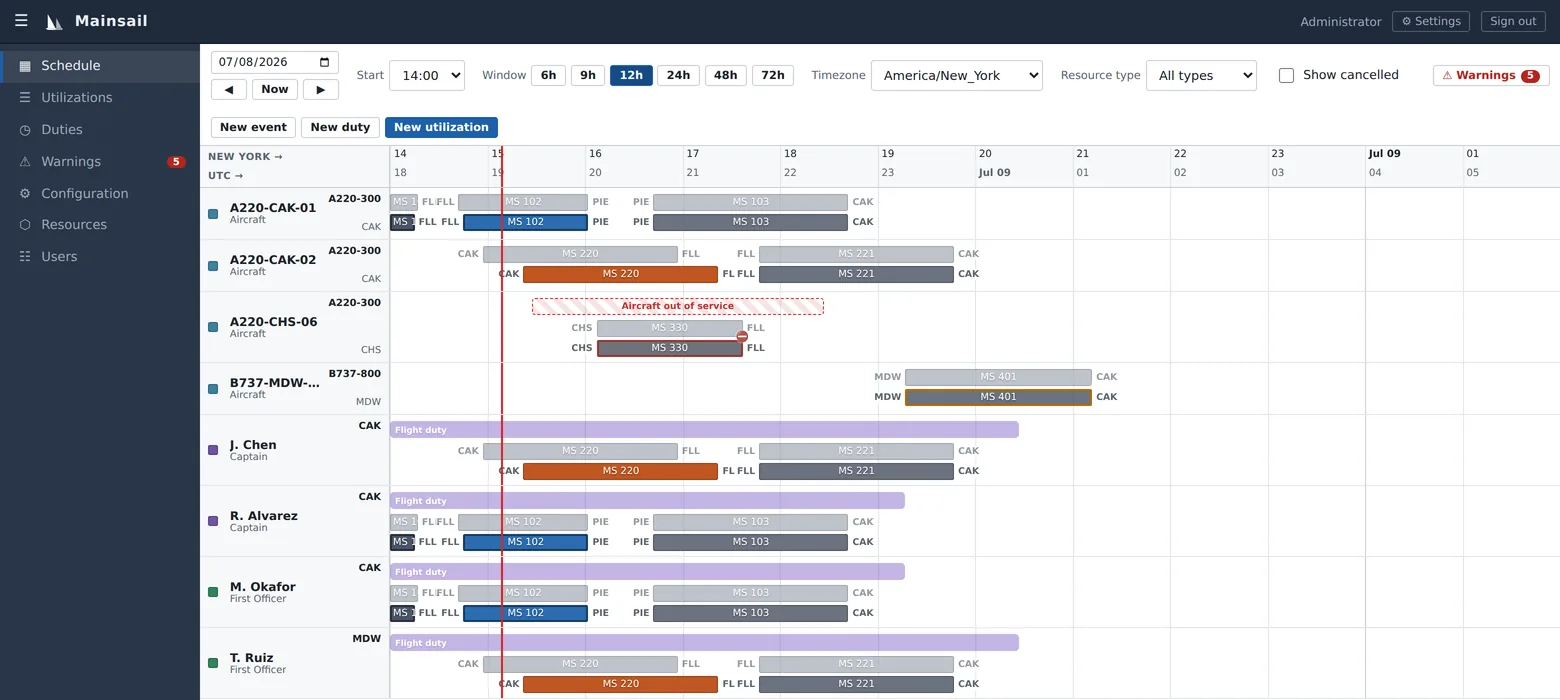
The top bar
- ☰ menu toggle — collapses the navigation rail to an icon-only strip (your choice is remembered on that browser). On phones it opens the navigation drawer.
- The Mainsail mark and name.
- Your display name, the ⚙ Settings button (section 06), and Sign out.
The navigation rail
Items appear only if your permissions allow them (section 28), so your rail may be shorter than this full list:
| Item | What it opens | Visible with |
|---|---|---|
| Schedule | The live Gantt board — the heart of the app | View or Edit schedule |
| Utilizations | A filterable table of all work records | View or Edit schedule |
| Duties | A filterable table of all duty periods | View or Edit schedule |
| Warnings | The full live warning list — the rail badge shows the current count | View or Edit schedule |
| Configuration | Types, locations, rules, and the simulator | Manage configuration |
| Resources | Your people and equipment, per resource type | Manage resources or View schedule |
| Users | Accounts and permission groups | Manage users |
The active page is highlighted. Typing a page's address without permission for it quietly redirects you to the Schedule — and the server enforces the same permissions regardless.
Everything is live
After sign-in the app keeps a realtime connection to the server. When anyone edits anything — a flight time, a duty, a rule, even a color in Configuration — every signed-in browser updates within moments. There is no refresh button and no “stale data” state to worry about: if the connection drops and returns, the app silently refetches everything on screen, and time-windowed tables also quietly re-poll every couple of minutes as a backstop.
Your dispatcher, your planner, and your chief pilot are always looking at the same picture — there's no “did you refresh?” in Mainsail.
Part 1 — Getting started · 06
Personal settings¶
Click ⚙ Settings in the top bar to set your personal defaults. These are saved to your profile on the server, so they follow you to any browser you sign in from. The dialog has one section, Schedule defaults — “These apply whenever you open the Schedule page.”
| Setting | Options | Effect |
|---|---|---|
| Timezone | Your browser's timezone, UTC, and a list of common zones | The default display timezone for the Schedule — also used by the Utilizations and Duties pages for every displayed and entered time |
| Window | 6h · 9h · 12h · 24h · 48h · 72h | How many hours the schedule spans when you open it |
| Start time | Current time (now), or a fixed hour 00:00–23:00 | Where the schedule window begins — “now” starts an hour before the current time; a fixed hour is handy if your ops day always starts at, say, 05:00 |
Save applies immediately — if the Schedule is open, it re-applies your preferences on the spot. You can still change timezone, window, and position freely on the board itself at any time; settings only control the defaults.
Part 2 — The schedule · 07
Reading the schedule¶
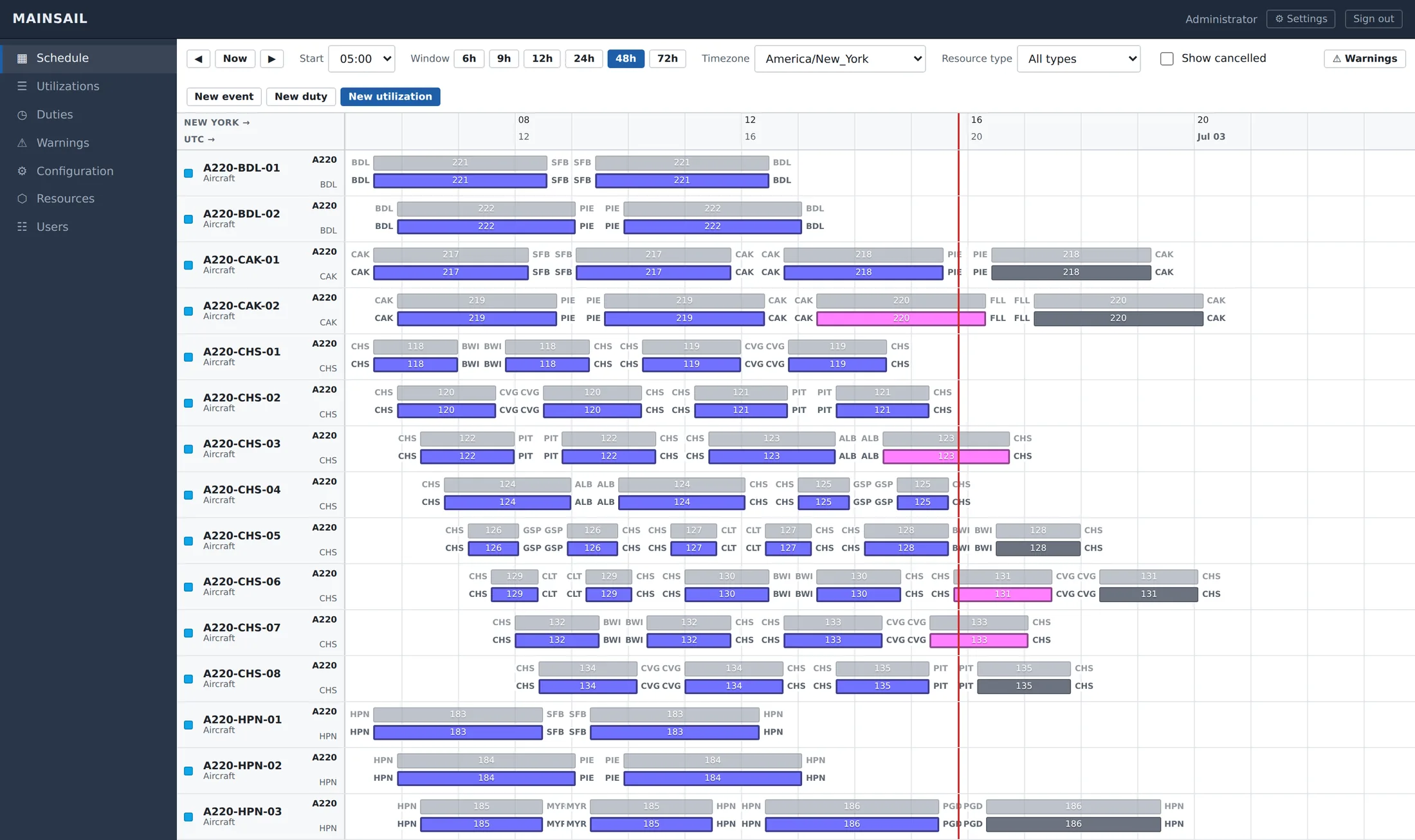
The Schedule page is where you'll live. It's a full-width timeline — a Gantt board — with one row per resource and time flowing left to right. Three kinds of records appear on it: utilization bars (work), duty bands (roster periods), and event boxes (disruptions).
The toolbar
Across the top of the board, left to right:
| Control | What it does |
|---|---|
| Date box | Shows the view's start date (tooltip Go to date). Pick a date to jump straight there, keeping the same start hour. |
| ◀ / Now / ▶ | Step back one day, snap to one hour before the current time, or step forward one day. |
| Start | A dropdown of the 24 hours (00:00–23:00) — moves the window's first visible hour on the current date. |
| Window | Six zoom buttons: 6h · 9h · 12h · 24h · 48h · 72h. The active size is the filled button. |
| Timezone | Your browser's zone, UTC, common zones, plus the timezone of every configured location. Everything on the page — axis, tooltips, and every time you type into a dialog — follows this selection. |
| Resource type | All types or one resource type — filters which rows appear. |
| Show cancelled | Off by default. When on, cancelled utilizations appear greyed-out with a struck-through label. |
| ⚠ Warnings | Opens the warnings-in-view panel; the red pill counts warnings in the current window (section 14). |
| New event / New duty / New utilization | Create records (visible only with the Edit schedule permission). |
The time axis
- The top-left corner shows two stacked captions — your selected timezone (e.g. New York →) and UTC → — labeling the two rows of tick labels. Every labeled tick shows the local hour on top and the UTC time in muted text beneath: the dual-timezone header dispatch expects.
- Label density adapts to zoom: every hour up to 12h windows, every 2 hours at 24h, every 4 at 48h, every 6 at 72h.
- Midnight ticks show the date in bold (e.g. Jul 08) with a darker gridline, so day boundaries stand out.
- A red vertical “now” line runs through the header and every row at the current moment, advancing automatically about every 30 seconds.
Rows and lanes
- Rows are sorted by resource type name, then resource name. The sticky left column shows each resource's color dot (its type's color), name, and type — plus up to two custom-field values on the right if the administrator configured them (e.g. aircraft type on top, base underneath).
- Within a row, records stack in three bands top-to-bottom: events, then duties, then utilizations. Overlapping records pack into extra lanes so nothing ever hides behind anything else — the row simply grows taller.
- The board scrolls vertically through large rosters without slowing down, and horizontally when the window is wider than the screen; the header and label column stay pinned.
- If the resource-type filter hides everything you'll see: “No resources match the current filter.”
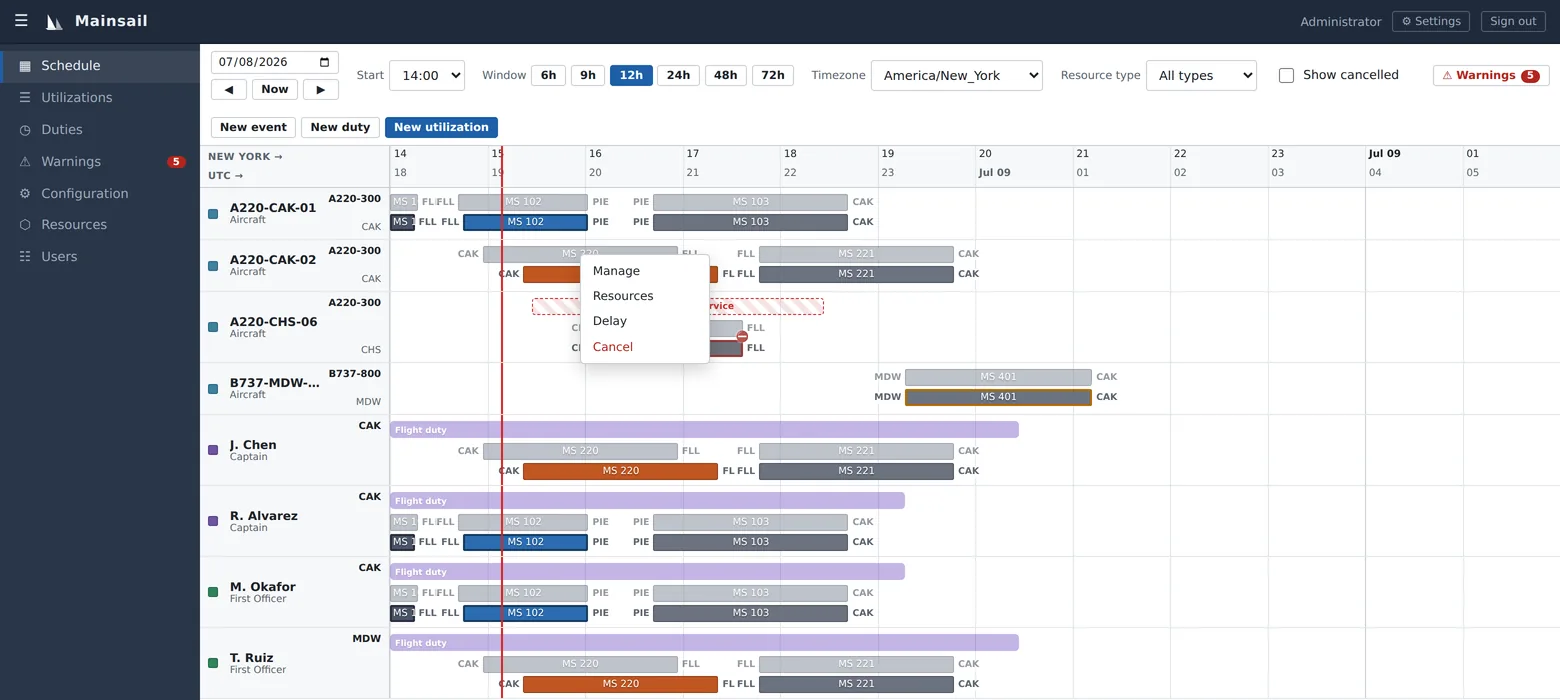
There is no dragging or resizing on the board — a stray mouse can never move a flight. Hover any bar for a full detail tooltip (desktop), and click (or tap) anywhere on a row's timeline to open a small menu listing everything stacked under that spot — including a duty band underneath a flight bar — with the actions each record allows. All changes go through dialogs you can review before saving.
Part 2 — The schedule · 08
Bars, colors & status¶
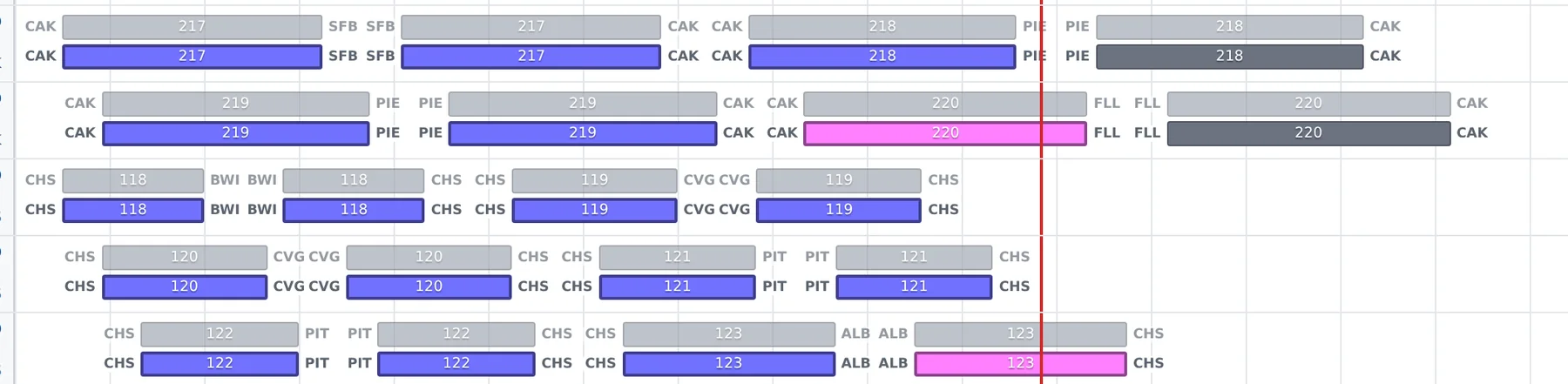
Once you can read a single bar, you can read the whole board. Every utilization draws as up to two stacked bars:
- The ghost bar (top, faint) spans the scheduled start to end — the plan of record. It never moves and never changes color.
- The live bar (bottom, solid) spans the effective times — actual if recorded, else estimated, else scheduled. When a delay pushes the estimate, the live bar slides right while the ghost stays put: slippage at a glance.
Both bars carry the origin location code off their left edge and the destination code off their right edge (the ghost shows scheduled locations; the live bar shows effective ones — so a diversion visibly changes the destination chip). The center label is the type's configured display field — typically a flight number.
Status colors
The live bar's color reflects the record's state. Colors are configurable per utilization type (section 24); the meanings are fixed:
| State | Meaning | Default |
|---|---|---|
| Scheduled | In the future with scheduled times only — no estimate, no actual | Grey |
| Early | Estimated to run ahead of schedule | Green |
| Late | Estimated to run behind schedule | Orange |
| In progress | Actual start recorded, no actual end yet | Blue |
| Complete | Actual start and end both recorded | Dark grey |
Once any actual time is recorded, the live bar also gains a heavier dark outline — a quick visual cue that this record has touched reality.
Lateness stages
Independently of status, when a start or end time passes its due time (the estimate, or the scheduled time if there's no estimate) without an actual being recorded, the live bar escalates through three warning styles, re-checked every 30 seconds:
| Stage | Overdue by | Default style |
|---|---|---|
| Stage 1 | 5+ minutes | Yellow diagonal stripes |
| Stage 2 | 10+ minutes | Orange diagonal stripes |
| Stage 3 | 15+ minutes | Red crosshatch |
Each stage can be restyled per type as a solid color or a pattern overlay (diagonal, dots, crosshatch). The moment the actual time is recorded, the overdue styling clears — the board is nagging you for exactly one thing: tell me what really happened. Cancelled records never show lateness.
Warning decorations
A record carrying warnings shows a glyph at its top-right corner — ⛔ for a blocking warning, ⚠ for an advisory — plus a colored ring around the live bar: red (and desaturated fill) for blocking, amber for advisory. The full warning messages appear in the record's hover tooltip and in the warnings panel (section 14).
Duty bands and event boxes
- Duties draw as semi-transparent rounded bands in the duty type's color, with utilization bars sitting visually on top of the band that covers them. Rest periods are drawn even fainter with white diagonal hatching — an unmistakable “off” texture. A duty with warnings becomes more opaque and gains the same amber/red severity ring. Cancelled duties are not drawn at all.
- Events draw as dashed-outline boxes with a faint striped fill at the top of the row, in the event type's color; blocking-mode events use a red-tinted stripe. Events that target a location or sub-location (rather than a resource) don't occupy any resource row — they make themselves known through the warnings they raise.
- Cancelled utilizations (visible when Show cancelled is on) are fully greyscaled and faded with a struck-through label.
Hover tooltips
On desktop, hovering any bar shows a tooltip with the record's full story:
- Label, type, and route (ORIGIN → DEST).
- One row per time point showing the effective time and a small tag telling you which layer you're seeing: actual (green), est (amber), or sched (grey).
- Every slot with its assigned resource — an empty required slot reads unfilled in red; an empty optional slot reads open.
- Any custom fields the administrator flagged for tooltips, and every active warning with its severity glyph.
On phones, tooltips are replaced by the tap menu — the same details live in each record's dialog.
When you arrive at the board from a warning (or a shared deep link), the record you're being shown pulses with an accent outline and its row scrolls to center — if the view had to jump days, relax a filter, or reveal cancelled records to show it to you, that happens automatically.
Part 2 — The schedule · 09
Creating utilizations¶
A utilization is one piece of scheduled work — a flight, a maintenance job, a charter leg. You'll need the Edit schedule permission to create or change them.
Creating one
-
Click New utilization in the schedule toolbar. (The same dialog is available from the Utilizations page.)
-
Pick the utilization type. The type decides everything that follows — which time points, slots, and fields appear. It can't be changed after creation, so if you picked wrong, delete and recreate.
-
Enter times. The Times table has one row per time point (your types may call them Out/Off/On/In) and three columns: Scheduled, Estimated, Actual. Only the scheduled start and end (marked *) are required to save. As the footnote says: estimated overrides scheduled; actual overrides both. All times are entered in the timezone currently selected in the toolbar — the section heading reminds you which.
-
Set locations. The Locations rows (start and end) have the same three-layer columns, each a dropdown of location codes. Scheduled locations drive the location-continuity checks.
-
Fill the slots. One searchable picker per position the type defines (required slots are starred). Each slot only offers resources of its allowed resource types — a Captain slot won't offer an aircraft. You can save with empty slots; a required slot left empty raises an Unfilled required slot warning until someone fills it.
-
Fill the fields (flight number, block hours… whatever your types define; required ones are starred) and press Save.
Editing, viewing, deleting
- Edit: click the bar → Manage. The dialog saves only the values you actually changed, so two dispatchers editing different fields of the same record won't overwrite each other.
- View-only users get the same dialog titled View… with a single Close button.
- Delete (red button in the dialog footer, with a confirmation) removes the record entirely. If you want it gone from planning but kept for the record, Cancel it instead (section 13).
A utilization with no resources assigned has no row to appear on — so it won't be visible on the board at all. It still exists: the Utilizations page (section 18) lists every record in a window, assigned or not, and its Assignment → Unassigned only filter is the quickest way to find work that still needs crew and equipment.
Linked records
Some utilization types are configured as linkable to others — the classic example is a deadhead (a crewmember riding as a passenger) linked to the company flight carrying them. When the type allows it, the dialog shows a Linked to picker:
- While linked, the record's times and locations mirror the linked record and update with it automatically — the inputs are disabled, and the board moves both together (including through delays).
- Unlinking keeps the last synced values, which you can then edit freely.
- If the record you're linked to is outside the window currently loaded, the picker shows “Linked record (outside loaded window)” — the link is intact.
Part 2 — The schedule · 10
Recording estimates & actuals¶
The board is only as truthful as the times you feed it. Two habits keep it honest: record estimates when expectations change, and record actuals as things happen.
Estimates
- For a straightforward slip, use the Delay action (section 13) — it writes a consistent estimate across every scheduled time point in one move and can flow the change downstream.
- For a single revised ETA, open Manage and type into the Estimated column of just that time point.
- Estimates move the live bar and flip the record to Early or Late, but never touch the ghost bar — the plan of record survives.
Actuals
- Open Manage and fill the Actual column for each time point as it happens (out, off, on, in…). The first actual flips the record to In progress; the final one to Complete.
- Recording an actual clears any overdue lateness styling for that time point — and freezes that moment of history.
- Actuals lock the record's disruption options: once anything actual is recorded, Delay and Cancel are no longer offered; while in progress you get Return and Divert instead; a completed record only offers Manage.
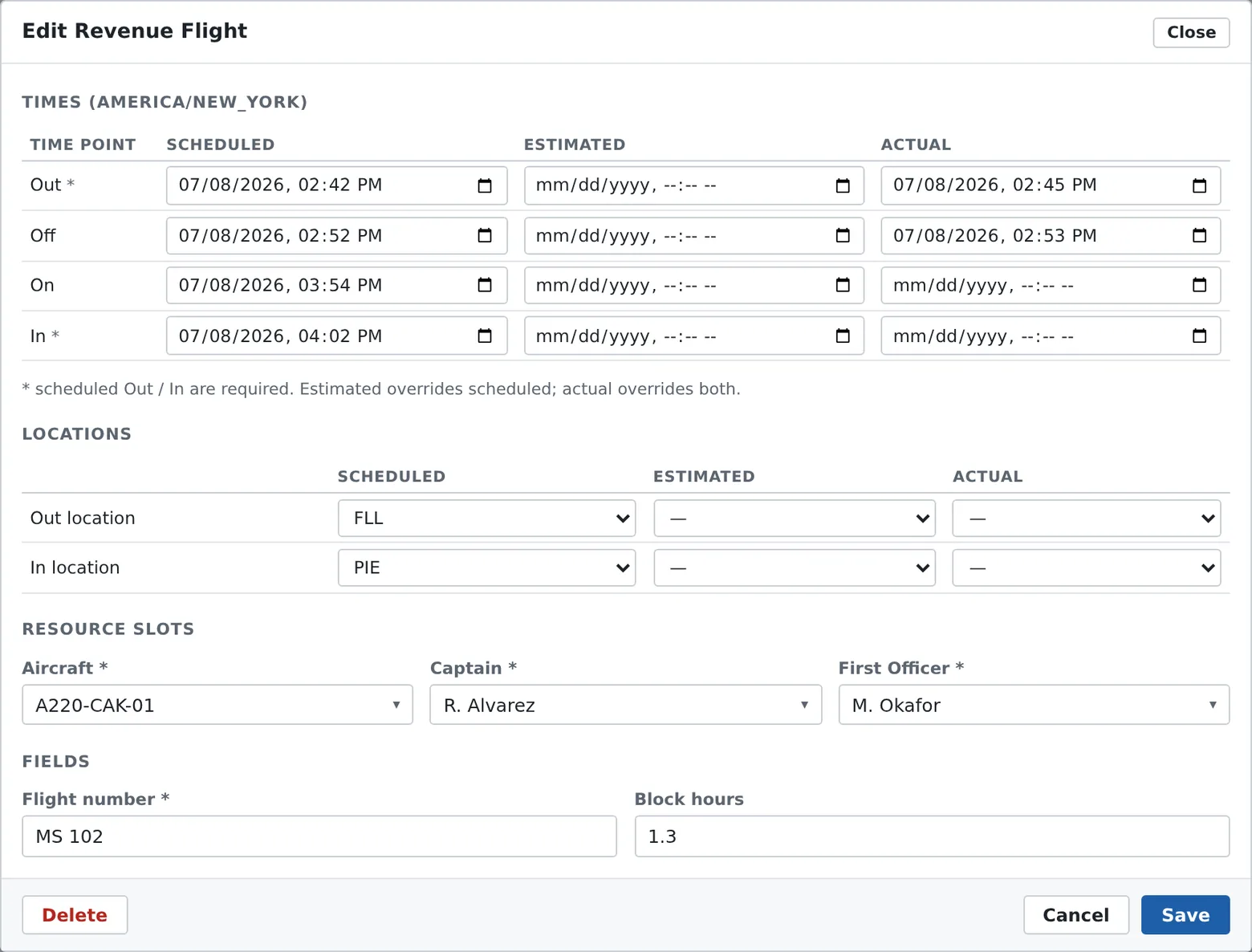
If you edit times on a record whose covering duty was previously stretched to absorb a delay, the dialog shows an amber notice: changing times here will not move that duty — use the Delay action to keep duties in sync.
Running a demo or training session? The simulator (section 27) can stamp actuals automatically as the clock passes each scheduled time — no hand entry needed.
Part 2 — The schedule · 11
Working with duties¶
Duties are roster periods laid over resources — the on-duty and rest timeline that crew scheduling and compliance run on. A duty's type decides whether it's an on-duty period (resources may be assigned work during it) or a rest period (they may not), and a resource may be on only one duty at a time.
Creating a duty
Click New duty in the schedule toolbar (or on the Duties page) and pick the duty type. A banner immediately tells you what you're making — On-duty period (“Resources may be assigned to utilizations during this duty”) or Rest period — and, if the type has one, its max duration.
Enter times. Same three-layer table as utilizations; duty types usually name their points Report and Release. Scheduled report/release are required.
Set locations (only if the type carries them — where the duty begins and ends feeds local-time and acclimation logic in rules).
Assign the crew in the Resources slots and fill any custom fields, then Save. One duty can cover several resources — a whole crew on one record.
Recording an extension
Editing an existing duty reveals an Extension section: Extension (hours) and Reason / concurrence (e.g. “wx delay, PIC concurred”). A recorded extension raises the duty type's length cap, the built-in duty-length warning, and any custom rule that opts into extension credit (section 16) — each up to its own ceiling. This is how a regulation-style operational extension (a 117.19-type event) is captured rather than fudged.
Cancel, reactivate, delete
- Cancel duty (in the dialog footer) soft-cancels it — it disappears from the board and stops counting anywhere, but its record remains and the button becomes Reactivate.
- Delete removes it permanently (with a confirmation).
If a resource type is marked requires duty (typical for crew), assigning it work outside an on-duty period raises a Duty coverage advisory. Duties over their type's max duration raise Duty length limit warnings. And every rest rule in Part 3 reads the duty timeline — rest is what you model as rest duties, never guessed from gaps between flights.
Part 2 — The schedule · 12
Working with events¶
Events mark a condition on exactly one target — a resource, a location, or a sub-location — for a span of time: an aircraft out of service, a sick call, a gate closure, a ramp freeze. What an event does depends on its type's severity:
Overlapping work cannot happen
While the event is active on its target, utilizations that overlap it raise blocked by event warnings — and the affected leg is treated as impossible, which cascades into downstream location mismatches until resolved.
Warns, schedule proceeds
Overlapping work draws an advisory event warning but is allowed — right for “heads-up” conditions that shouldn't stop the operation.
Creating an event
Click New event and pick the event type — the dropdown shows each type with its mode, e.g. “Maintenance (blocking)”. The type is fixed once created.
Pick the target kind — Resource, Location, or Sub-location (only the kinds the type allows are offered) — then the target itself from a searchable list.
Set Start and End times (the usual scheduled / estimated / actual columns), fill any custom fields, and Save.
On the board, events on a resource appear as dashed boxes at the top of its row. Events on locations or sub-locations don't sit on any row — you'll see their effect as warnings on the work they conflict with. Edit or delete an event via click → Manage event.
Taking an aircraft down for maintenance? Create the blocking event first, then read the warnings it raises — that's your impact analysis: every directly blocked leg plus the downstream ripple, before you've re-planned anything.
Part 2 — The schedule · 13
Delays, diverts & swaps¶
When the day goes sideways, click the affected bar. The menu offers exactly the actions that make sense for the record's state:
| Record state | Actions offered |
|---|---|
| Not started | Manage · Resources · Delay · Cancel |
| In progress | Manage · Resources · Return · Divert |
| Completed | Manage |
| Cancelled | Manage · Reactivate |
Delay — with the ripple, before you commit
Delay writes estimated times — scheduled + one consistent offset — onto every scheduled time point. The plan of record is never touched. Step by step:
-
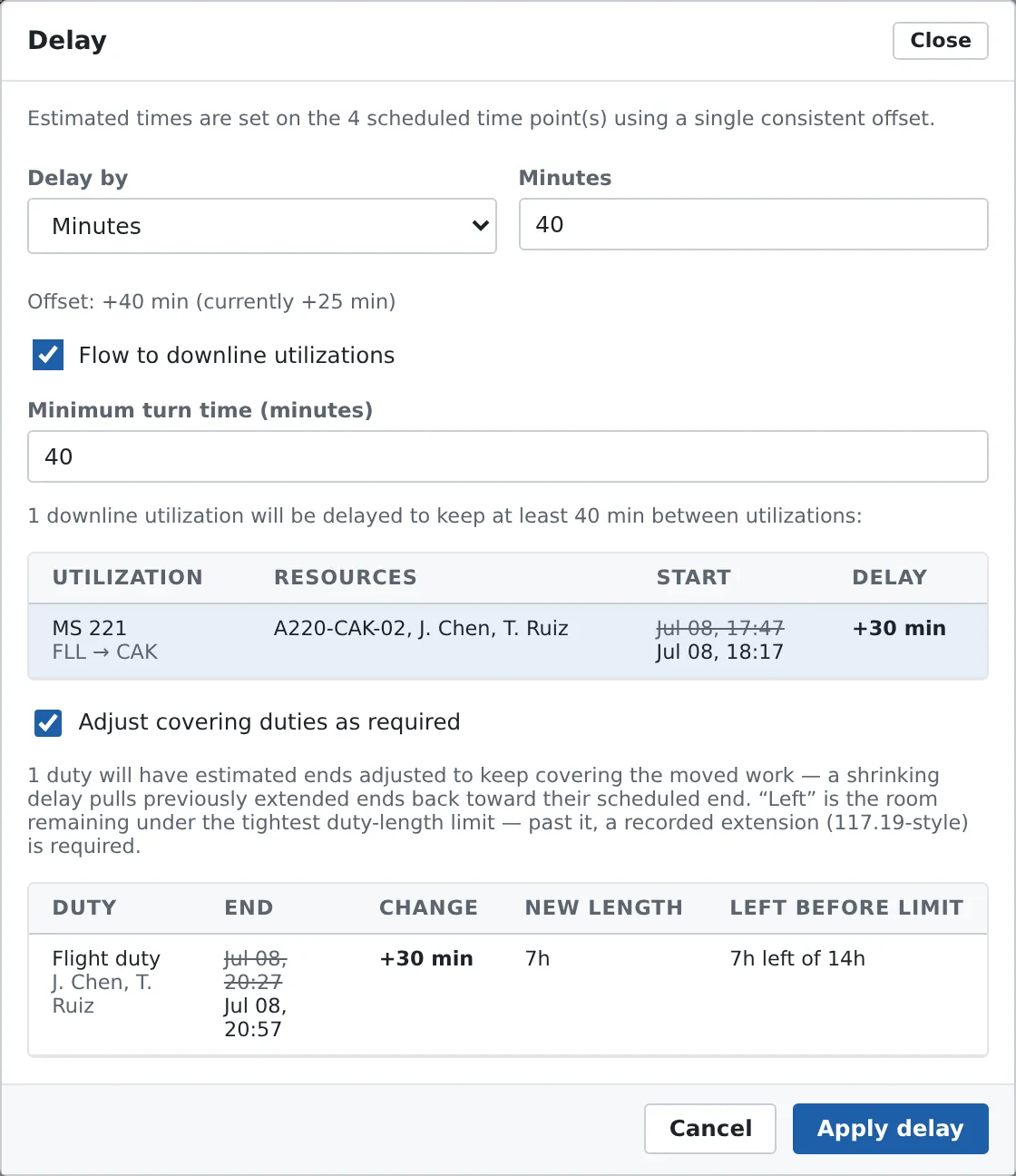
Enter the delay — as Minutes or as a new start time (the dropdown adapts to your type's start label, e.g. New out time). The dialog opens pre-filled with the delay the record already carries, and an Offset readout shows the live result, e.g. “Offset: +25 min (currently +15 min)”. Enter a smaller number to pull a delay back; enter 0 to return the record exactly to schedule.
-
Optionally tick Flow to downline utilizations. A Minimum turn time field appears (default 40 minutes), and Mainsail computes the cascade over the next 7 days: any later record sharing a resource with a moved record is pushed just enough to preserve the minimum turn, propagating through all of each moved record's resources. The preview table shows every affected record — old start struck through, new start, and the added minutes — before you commit. Records that have already started are immovable and stop their branch; cancelled records are ignored; nothing is ever pulled earlier; linked records ride along automatically.
-
Review Adjust covering duties as required (ticked by default). Duties covering the moved work get their estimated ends stretched to keep covering it — and pulled back when a delay shrinks (never below their scheduled end). The table shows each duty's new length and, crucially, Left before limit: how much room remains under the tightest duty-length limit. A red “over limit — extension required” tells you a recorded extension (section 11) will be needed. Rest duties, cancelled duties, and duties already ended are never touched.
-
Press Apply delay. The button stays disabled until every enabled preview has finished computing — you always see the full impact first. Updates are written one by one; in the rare case one fails midway, the error says exactly how many landed, and the board refreshes to match reality.
Resources — swap crew or equipment in place
- Click the bar → Resources. Each slot's picker lists, by default, only resources projected to be at the record's start location at its effective start — Mainsail walks every resource's assignments to know where it will be.
- If the currently assigned resource is projected to be somewhere else, an amber note tells you where. Tick Show resources at other locations to widen the list for an intentional reposition.
- Save applies the new assignments; every rule re-checks immediately.
Divert and Return
- Available while a record is in progress. Divert asks for a new estimated destination; Return pre-fills it with the departure location.
- Both let you revise the remaining ETAs in the same dialog (every not-yet-actual time point is offered).
- Diverts are data, not sticky notes: the estimated end location changes, the destination chip on the board updates, and location-continuity checks immediately re-evaluate everything downstream.
Cancel and reactivate
- Cancel (offered before anything actual is recorded) asks for confirmation: “Cancel this utilization? It stays for visibility but no longer moves or ties up resources.” Cancelled records stop counting toward every warning and rule, and their existing warnings clear.
- Tick Show cancelled in the toolbar to see them (greyed, struck through); Reactivate restores one instantly.
- Cancel when the work didn't happen but should stay on the record; Delete (in the Manage dialog) when it should never have existed.
Part 3 — Warnings & rules · 14
The warning system¶
Mainsail checks the entire schedule automatically — on every edit, within moments, plus a full sweep every 15 minutes as a backstop. Violations become warnings in one shared, live stream. Two families feed it:
- Built-in checks — always on, no configuration: location continuity, events, double-booking, unfilled required slots, location opening hours, duty coverage, and duty length limits.
- Custom rules — the policies you build in Configuration → Rules (sections 15–16).
Two severities
This can't work
More than a red badge: a blocking violation marks the affected leg as impossible, so the resource is treated as not moving through it — which cascades into downstream Location mismatch warnings until the root problem is fixed.
Look at this
Flags the problem and lets the schedule proceed. Right for heads-up policies and soft limits.
Advisory and warning severity are the same thing — filters and counters say “Advisory”, while severity badges and the rule builder show the raw word “warning”.
No inbox to manage
There is deliberately no acknowledge, resolve, snooze, or dismiss anywhere in Mainsail. Each evaluation recomputes from the current data: a warning appears when the problem exists and disappears on its own the moment it doesn't — because you fixed the schedule, cancelled or deleted the record, or disabled the rule. If a warning is showing, it's real, right now. The Raised timestamp tells you when it was first detected.
The nine kinds
| Kind | Fires when… | Typical fix |
|---|---|---|
| Location mismatch | Walking a resource's assignments in time order, a leg starts somewhere other than where the resource will actually be | Repair the upstream leg that stranded it (often the real culprit is earlier in the chain) |
| Blocked by event | A blocking event on an assigned resource overlaps the work | Move the work, resolve the event, or swap the resource |
| Advisory event | An advisory event on an assigned resource overlaps | Review; proceed if acceptable |
| Unfilled required slot | A required position has no resource assigned | Assign a resource (Resources action or Manage) |
| Double booked | A resource is assigned to two overlapping utilizations | Reassign or retime one of them |
| Location closed | Work starts or ends while its location is closed per its weekly hours | Retime the work or adjust the location's hours |
| Duty coverage | A resource whose type requires duty works outside an on-duty period | Add or extend a covering duty |
| Duty length limit | A duty exceeds its type's max duration | Shorten the duty or record a permitted extension |
| Custom rule | Any enabled custom rule is violated — the message is the rule's own plain-English sentence | Adjust the schedule to satisfy the stated policy |
All checks read effective time (actual > estimated > scheduled) unless a rule is explicitly set to evaluate scheduled times only.
Where warnings appear
- On the bars — the ⛔/⚠ glyph, colored ring, and tooltip messages (section 08).
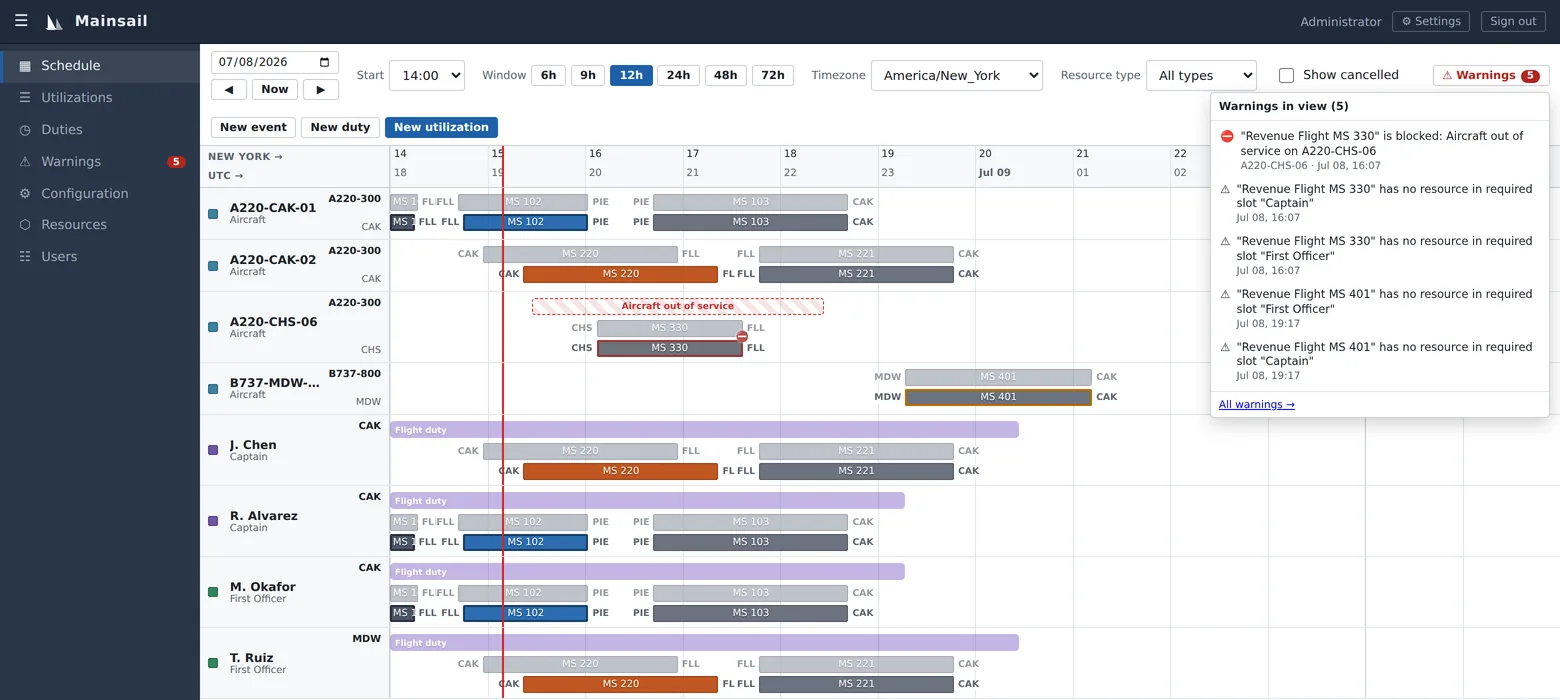
- The schedule toolbar panel — the ⚠ Warnings button counts warnings in the current view (turning red when any is blocking). The panel lists them blocking-first; clicking an entry jumps the board to the record and pulses it. A footer notes how many more exist outside the view, with an All warnings → link.
- The navigation badge — the Warnings item in the rail shows the live total.
- The Warnings page — the full list: subtitle counts (“N blocking, M advisory — updated live as the schedule changes”), a kind filter (offering only kinds currently present), a severity filter (All / Blocking only / Advisory only), and columns for severity, kind, message, resource, and when it was raised (in your timezone). Click a row or its Locate button to jump to the schedule; editors also get an Open button on utilization warnings to fix the record right there. When everything is clean it says so: “No active warnings. The schedule is clean.”
How to respond
- Triage blocking first. Blocking problems cascade — fixing the first blocked leg in a chain often clears several downstream mismatches at once.
- Locate to see context; Open to fix immediately.
- Match the fix to the kind (table above). Then do nothing else — the warning clears itself, typically within seconds.
- If a custom rule is misfiring, a configuration manager can toggle it off in Configuration → Rules — its warnings clear, its configuration is kept.
Part 3 — Warnings & rules · 15
Custom rules¶
Custom rules are your policies and regulatory limits, built in a visual editor — no code. Duty-time ceilings, block-hour totals over rolling windows, minimum rest, qualification matching, occupancy limits: you describe the limit, Mainsail reads it back as a plain-English sentence, and from then on it's checked on every edit. Rules live in Configuration → Rules (requires Manage configuration).
The rules list
- Columns: Name (with the description beneath), What it checks — an automatically generated plain-English summary, which is exactly the message its warnings will carry — Severity, and Enabled.
- Enabled is a live toggle: switching it off silences the rule immediately (its warnings clear on the next evaluation) while keeping the configuration — the safe way to stage or pause a rule. Disabled rules show dimmed.
- Delete (with confirmation) permanently removes the rule and every warning it produced.
Anatomy of the rule editor
Every rule is assembled from the same parts, top to bottom:
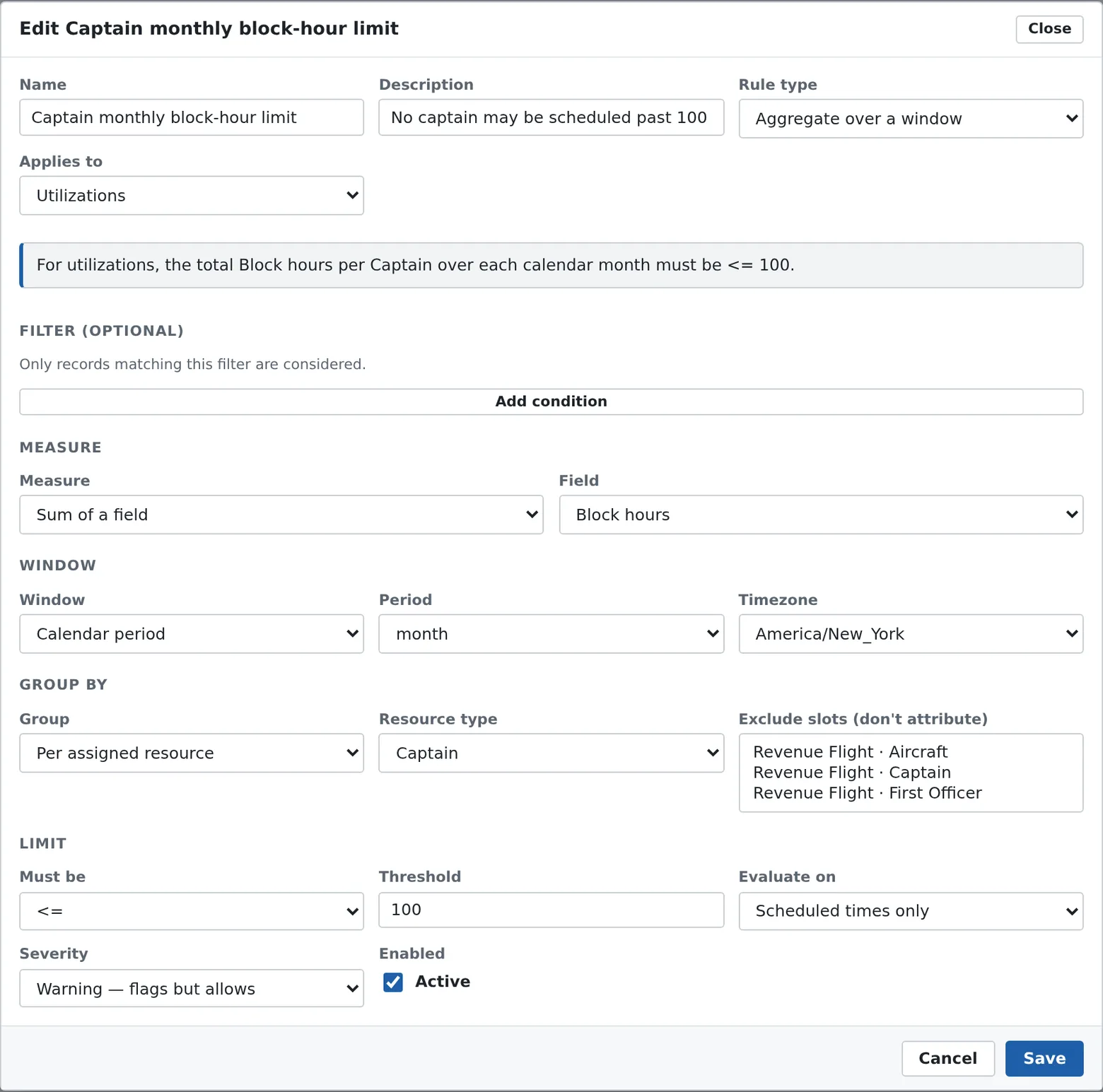
Name and description — e.g. “Captain monthly block limit”.
-
Rule type — the archetype; the rest of the form adapts to it. Six are available (each detailed in section 16): Aggregate over a window, Concurrency / occupancy, Field match / qualification, Minimum rest / gap between activities, Per-subject limit (each record), and Consecutive pattern (run length).
-
Applies to — what the rule scans: Utilizations, Resources, Events, or Duties. Some archetypes fix this themselves (qualification rules always read utilizations; rest and pattern rules always read duties).
-
The live preview. As you configure, a plain-English sentence updates in place — “For utilizations where type is Flight, the total Block hours per Captain over each calendar month must be ≤ 100.” That sentence is exactly what the rule's warnings will say. If it reads wrong, the rule is wrong.
-
Filter (optional) — “Only records matching this filter are considered.” Add conditions (field · operator · value); with several, choose All conditions or Any condition. You can filter on the record's Type, its start / end location, its assigned resource types and counts (including per-type counts like “Captain count”), region-touching counts for duties (e.g. contains a leg touching Non-CONUS), and every custom field your types define. Operators: is, is not, is one of for reference fields; those plus >, <, >=, <=, contains for the rest.
-
Group by — the unit the limit applies to: Everything together, Per assigned resource (the workhorse — optionally restricted to one resource type, e.g. per Captain, and able to exclude slots so a jumpseat rider accrues nothing), Per resource type, Per start location, Per end location, or Per custom field value — pick several fields to group by their combination, the recipe for uniqueness rules like “the same (tail, route) pair at most once per 24 hours”.
-
The limit — a comparator (≤, <, ≥, >, ==, !=) and threshold, plus:
- Evaluate on — Effective (actual / estimated / scheduled), or Scheduled times only for regulations that govern planning, so a late actual never retroactively trips a scheduling limit.
- Severity — Warning — flags but allows, or Blocking — cascades downstream like a blocking event. Use blocking only when a violation genuinely makes a leg unworkable. (Minimum-type rules — “at least N” — only ever advise, whatever their severity.)
- Enabled (Active) — untick to save the rule staged but silent.
Saving and testing
Saving validates the rule and immediately triggers a full re-evaluation of the whole schedule — new warnings appear on the Warnings page within moments. The practical test loop: read the live preview until it says what you mean, save, check the Warnings page, and toggle Enabled off if the result surprises you. (Advanced rules authored through the API — nested condition groups, for instance — are preserved untouched when you edit the visible parts in this editor; a notice tells you when that's the case.)
Part 3 — Warnings & rules · 16
Rule types reference¶
The six archetypes, what they're for, and their controls. Skim for the shape you need; each entry ends with worked examples.
Aggregate over a window
Total something across records, per group, per time window, and compare it to a limit. The workhorse for caps and quotas.
- Measure: Count of records, Sum / Average / Minimum / Maximum of a field (any numeric custom field), Total duration (in minutes, hours, or days), or — for duties — Contained total within each duty (see Per-subject limit below).
- Window: Whole schedule (one running total per group), Calendar period (day, week, month, quarter, or year, with a timezone that defines where the boundaries fall), or Rolling window (a size in minutes/hours/days — the limit must hold over any window of that length, not just aligned ones).
Also handy for uniqueness: group by tail number + route, measure Count of records, rolling 24 hours, must be ≤ 1 — “the same (tail, route) pair at most once per day”.
Concurrency / occupancy
Limit how many things happen at once. No window to configure — the engine sweeps the timeline and finds the peak overlap per group.
- Applied to utilizations or events, the intervals are the records' own times.
- Applied to resources, the intervals are dwell periods — a resource is “present” at a location from when one leg ends there until the next departs. That's how you write ramp and gate capacity rules.
- A maximum at blocking severity blocks the latest-arriving excess records at the peak; a minimum (“at least 1 dispatcher on shift”) only ever advises.
Examples: resources of type Aircraft, grouped per end location, must be ≤ 2 — “no more than two aircraft at a gate”. Utilizations of type Dispatch shift, everything together, must be ≥ 1 — “never an uncovered moment”.
Field match / qualification
For each utilization, compare a field on its assigned resource to a field on the utilization. The qualification enforcer.
- Pick the resource type to check (or any assigned resource), the resource field, the condition — Must match or Must not match — and the utilization field.
- With multi-value fields, a match means the value sets overlap — a captain qualified on A320 and B737 matches a flight needing either.
- A resource with no value always fails a must-match rule; a utilization missing the field is skipped (the rule only applies where the work declares a requirement).
Example: each Captain's Aircraft qual must match the flight's Aircraft type.
Minimum rest / gap between activities
Constrain the rest between a resource's consecutive duties. Reads the duty timeline only — rest is what you model as duty periods, never inferred from gaps between flights. Group per assigned resource so rest is checked per person. Three modes:
- Minimum rest between duties — either a flat minimum (e.g. 10 hours before every duty), or tiered: the required rest depends on the duty that just ended — its own clock length, or a total rolled up from the work inside it (e.g. its flight time). Tiers read like “up to 8h → 9h rest · up to 9h → 10h rest · above → 11h rest”. A compensatory window can allow a tier's rest to drop to a floor when a long make-up rest begins soon enough, and a follow-on cap can limit the duty scheduled after a reduced rest — the shapes regulations like 135.265(c) and 121.467 take.
- A long rest must occur within a rolling window — e.g. 24 consecutive hours of rest within every 7 days.
- Combined length of two back-to-back periods — when a duty of one type rolls straight into another (a reserve period converting into a flight duty), their combined elapsed time is limited, with a configurable gap tolerance and an optional offset on top of the limit.
Per-subject limit (each record)
Check each matched record on its own against a limit — no totalling across records, no window. Simple on its face (“every ferry flight ≤ 4 hours”), and the home of the deepest duty-compliance machinery:
- Contained total within each duty — rolls up the work inside a duty: the time spent on its activities, or a numeric field summed across them (e.g. block hours). Restrict which activity types count (flights yes, deadheads no) and exclude ride-along slots (a jumpseat rider accrues nothing). Grouped per assigned resource it becomes a per-crewmember check: “each duty's flight time must be ≤ 8 hours per crewmember”.
- Split-duty rest credit — subtracts a qualifying mid-duty rest (recorded as a pair of time points on the duty) from the measured duration, with the qualifying conditions regulations demand: minimum length, a nightly local-time window, scheduled-in-advance and not-cut-short, only after the first leg ends, and an optional cap on total spread (117.15-style).
- Extension credit — lets a recorded duty extension (section 11) raise this rule's limit, up to a credit cap.
- Unacclimated reduction — lowers the limit (e.g. by 0.5h, 117.13(b)-style) when the crewmember isn't acclimated at the record's start. Requires acclimation tracking: location coordinates, a home-base field on the resource type, and rest-type duties marked as counting toward acclimation.
- Limit varies by table — replaces the single threshold with a regulatory-style lookup table (14 CFR 117 Tables A/B/C shape): one or two dimensions keyed by local report-time band, contained record count (segments), assigned resource count, or a field value, with a grid of limits per cell. The scalar threshold remains the fallback when a lookup can't resolve.
Consecutive pattern (run length)
Walk each group's duties in start order and limit the run of consecutive duties matching a condition — e.g. no more than 3 consecutive duty periods overlapping the window of circadian low. Every duty past the limit is flagged.
- Count only duties overlapping a local time-of-day window (e.g. 02:00–06:00), or count every filtered duty for plain “no more than N consecutive duty days” rules.
- Break resets after N hours — a sufficiently long free gap resets the run; an optional physiological-night reset recognizes a long break that spans a full local night window instead.
- Non-matching duties either reset the run (default — a daytime duty between night duties breaks the sequence) or can be made neutral: they occupy time but neither count nor reset.
- Rest-opportunity allowance — raise the limit (e.g. from 3 to 5) while every duty in the run provides a qualifying mid-duty rest, with the same qualification controls as the split-duty credit.
A total over time → Aggregate. Too many at once → Concurrency. “Qualified for what they're flying” → Field match. Rest between duties → Minimum rest. A limit on each duty or leg by itself → Per-subject limit. “No more than N in a row” → Consecutive pattern.
Part 4 — Day-to-day data · 17
Managing resources¶
The Resources page is the registry of your people and equipment — subtitle: “The people and equipment your operation schedules”. Anyone with schedule access can view it; adding and editing requires the Manage resources permission.
- Resources are managed one resource type at a time: a type dropdown in the panel header switches between them, and the add button adopts the type's name — Add Aircraft, Add Captain, and so on. (If no types exist yet, the page points you to Configuration first.)
- The table shows Name plus up to the first five custom fields of the type as columns. Empty values show “—”, yes/no fields show Yes or No, location fields show their code, and multi-choice values are comma-joined.
- Add / Edit opens a dialog with the resource's Name / identifier (e.g. 245NV) and the type's full custom-field form — required fields starred.
Deleting a resource (confirmation: “Delete {name}?”) also removes it from every utilization it was assigned to — which can leave required slots unfilled and raise warnings across the schedule. Check its assignments on the board before deleting.
Part 4 — Day-to-day data · 18
The Utilizations page¶
The same records the board draws as bars, in a filterable table — subtitle: “Every planned activity in the window — including ones with no resources assigned yet”. That last part is the page's superpower: work with nobody assigned has no row on the board, and this is where you find it.
- Filters: From / To date-time pickers (in your preferred timezone, named right in the labels; defaults: 12 hours back to 7 days ahead), Type, and Assignment — All or Unassigned only.
- Columns: Type (color dot + name), Label, effective Start and End, Route (start → end codes — with a “(sched {code})” hint when a diversion changed the destination), and Assigned resources (a badge per resource; hover shows which slot; a red Unassigned badge when empty).
- Rows sort by effective start. New utilization and per-row Edit buttons appear for editors and open the exact same dialog as the schedule — changes show up on the board instantly.
Start the morning with Assignment → Unassigned only over the next few days — it's the fastest list of everything that still needs crew or equipment.
Part 4 — Day-to-day data · 19
The Duties page¶
The tabular view of duty periods — subtitle: “Roster periods over resources — on-duty and rest. A resource may be on only one at a time.”
- Filters: From / To (same defaults as Utilizations), Type, and Kind — On-duty & rest, On-duty only, or Rest only.
- Columns: Type (color dot, name, an on-duty or rest badge, and a cancelled badge on dimmed cancelled rows), Label, effective Start and End, Duration (e.g. 9h 30m), and Assigned resources.
- New duty and Edit (editors only) open the same duty dialog as the schedule, including the Extension section on existing duties.
Part 5 — Administration · 20
Configuration overview¶
The Configuration page is where an administrator shapes Mainsail around the operation — its subtitle says it plainly: “Define the building blocks of your operation: where things happen, what resources you have, what they do, and what can go wrong”. It requires the Manage configuration permission and holds seven tabs, in this order: Locations, Resource types, Utilization types, Duty types, Event types, Rules (Part 3), and Simulator.
- Every tab works the same way: a list panel with a live count (“Locations (4)”), an add button, and Edit / Delete row actions. Deletes always confirm first.
- Configuration changes propagate live — colors, fields, and types update on every signed-in user's screen without a refresh.
- Duplicate names are rejected with a clear message (e.g. “A resource type with this name already exists”).
Work left to right, roughly: Locations first (everything references places), then Resource types and your Resources, then Utilization types (their slots need resource types to exist), then Duty types and Event types, then Rules, and finally Users & groups for the rest of the team.
Part 5 — Administration · 21
Locations & hours¶
Locations are the places your operation happens — airports, ports, depots — each optionally containing sub-locations like gates or bays. They're referenced everywhere: utilization and duty start/end points, event targets, custom fields, rule conditions, home bases, and the schedule's timezone list.
A location's fields
| Field | Meaning |
|---|---|
| Code | Short identifier, up to 16 characters, stored uppercase (e.g. LAS) |
| Name | Full name (e.g. Harry Reid International) |
| Timezone | The location's zone — open hours are interpreted in it, and it joins the schedule's timezone dropdown |
| Latitude / Longitude | Optional coordinates; longitude feeds the compliance engine's theater/acclimation math |
| Region | CONUS (assumed) or Non-CONUS — region-based rule conditions read this (e.g. international duty tiers) |
| Open hours (local time) | Weekly schedule; empty means open 24/7 |
The weekly hours editor
- Seven rows, Sun through Sat. A day with no spans reads Open all day.
- + Add hours adds a span (defaulting 08:00–17:00); days can hold several spans.
- Work starting or ending outside open hours raises the built-in Location closed warning.
Sub-locations
- Each has its own Code and Name (e.g. A12 / Gate A12) and, by default, inherits the parent's hours — tick “Define its own hours” to override.
- Add one from the list's + Add link; edit via the Edit sub… dropdown on the parent row.
Deleting a location removes it and its sub-locations; schedule records that pointed at it keep working with those references cleared.
Part 5 — Administration · 22
Resource types¶
Resource types classify what you schedule — Aircraft, Captain, First Officer, Tug. Every resource belongs to one type, inheriting its custom fields, color, and display settings; slots and event targets are defined in terms of resource types.
- Name, Description, Color — the color becomes the type's dot in lists and on schedule rows.
- Requires duty — “Advise when scheduled outside a duty”. Turn this on for crew-like types: assigning them work outside an on-duty period raises the Duty coverage advisory (never a hard block).
- Custom fields — the data every resource of this type carries: registration, seats, base, qualifications (section 23).
- Gantt display — pick up to two fields (Top-right field / Bottom-right field) to show at the right edge of each resource's row on the board — e.g. aircraft type on top, base underneath.
- Acclimation — Home location field — for crew-like types, the field holding each resource's home base (a location field, or a text field with a location code). The compliance engine anchors theater / acclimated-time tracking there; leave unset to disable acclimation tracking.
A resource type that still has resources can't be deleted — you'll see “Cannot delete a resource type that has resources”. Re-type or remove the resources first.
Part 5 — Administration · 23
Custom fields¶
Resource, utilization, duty, and event types all share the same custom-fields editor — this is how Mainsail speaks your vocabulary. Each field is one row:
- Label — the human name (“Aircraft type”). As you type, the Key auto-derives (“aircraft_type”).
- Key — the machine identifier: lowercase letters, numbers, underscores. Rules, display-field pickers, and stored values refer to fields by key — so treat keys as permanent. Renaming a key orphans values already stored under the old one.
- Data type — one of nine:
| Type | What users enter |
|---|---|
| Text | Free text (up to 2000 characters) |
| Number | A numeric value — the only type rules can sum or average |
| Yes / No | A checkbox |
| Date | A calendar date |
| Time | A time of day |
| Date & time | A full timestamp, entered and shown in UTC |
| Choice list | One value from a predefined list — or several, if set to Multiple choices. Enter the allowed values comma-separated (e.g. A320, B737, E175) |
| Location | One of your configured locations |
| Sub-location | One of your configured sub-locations |
- Required — must be filled when creating or editing records of the type.
- Tooltip — show the field's label and value in the record's hover tooltip on the schedule.
- Field order in the editor is the order fields appear on forms.
Fields do a lot of quiet work: they label bars (display fields), caption resource rows, power rule filters, measures, grouping, and qualification matching, and one of them can serve as a crew's home base for acclimation. Design them once, carefully — especially the numeric ones your compliance rules will total.
Part 5 — Administration · 24
Utilization types¶
Utilization types define the kinds of work resources get assigned to — Revenue Flight, Ferry Flight, Charter, Scheduled Maintenance. The type decides a record's timeline, positions, data, and paint:
Time points
- Every type has a required start and end point — rename them to match your operation (a flight calls them Out and In) and add intermediate points between them (Off, On).
- Each point tracks its own scheduled / estimated / actual values on every record.
Resource slots
- Named positions filled by resources — e.g. a required Captain slot, an optional ACM slot. Each slot lists which resource types may fill it (at least one), plus a Required flag — unfilled required slots raise warnings.
- Removing a slot that still has resources assigned on existing records asks “Remove anyway?” before unassigning them; renaming a slot in place keeps its assignments.
Linking
Tick other types to allow records of this type to bind to a record of a checked type and mirror its times and locations, kept in sync automatically — e.g. a deadhead riding a company flight. Linking is optional per record (section 09).
Display & colors
- Display field — which field's value labels this type's bars (defaults to the first filled field, then the type name).
- Utilization status — six color pickers: Scheduled block (the ghost bar — never changes), Scheduled, Early, Late, In progress, Complete (meanings in section 08).
- Lateness warnings — the three overdue stages (5 / 10 / 15 minutes), each a solid color or a pattern overlay (diagonal, dots, crosshatch) in a color of your choice.
Part 5 — Administration · 25
Duty types¶
Duty types define your roster vocabulary — Flight Duty, Reserve, Rest. They carry the same machinery as utilization types (time points, slots, custom fields, a display field) plus duty-specific switches:
- On-duty vs. rest — the checkbox “Resources may take utilizations during this duty”. Checked = an on-duty period; unchecked = a rest period (and rest is what every rest rule reads — model it explicitly).
- Locations — “Duties carry start/end locations (scheduled ones required)”. Where a duty begins and ends drives local-time bands and acclimation in rules.
- Acclimation — “Time in this duty counts as free from duty (rest) for acclimation tracking” — mark your rest types with this.
- Max duration (hours) — blank for no limit. By default the limit is advisory: a longer duty can still be created but draws the built-in Duty length limit warning. Tick Hard cap — block creating a longer duty to reject longer duties outright. A recorded extension raises the limit either way.
- Time points default to Report and Release; add intermediate points (e.g. a mid-duty rest window's start and end) if your split-duty rules need them.
- Slots work exactly as on utilization types — a duty can cover a whole crew through its slots.
Part 5 — Administration · 26
Event types¶
Event types define your disruption vocabulary — Aircraft Out of Service, Crew Sick Call, Gate Closure. There's no fixed category list: a “maintenance” event is simply an event type you created with that name. Each type sets:
- Severity — exactly two options: “Advisory — warns, schedule proceeds” or “Blocking — overlapping utilizations cannot happen” (the blocking cascade is described in section 14).
- Color — paints the event's boxes on the board.
- Allowed targets — which target kinds an event of this type may be activated on: any set of resource types, plus Locations and/or Sub-locations. At least one must be allowed.
- Custom fields and a Display field, as everywhere else.
Part 5 — Administration · 27
The simulator¶
The Simulator tab holds one workspace-wide switch — Simulator is running / Simulator is off — that makes Mainsail act out the schedule in real time. It's built for demos, training, and testing rules without anyone typing actual times by hand.
While running, roughly every 30 seconds the simulator:
- Stamps the actual time on every utilization, duty, and event time point the clock has passed, using the estimate if set, otherwise the scheduled time — and back-fills recently passed items (about the last 24 hours).
- Staggers intermediate points that have no time of their own — for a flight's Out/Off/On/In shape: Off lands 5 minutes after Out, On lands 5 minutes before In.
- Records the actual start and end locations on utilizations as those moments pass (estimated location preferred over scheduled).
- Never overwrites an actual a person already recorded — manual entries always win. Linked records aren't touched directly; they mirror their target as usual.
Every stamped actual flows through the normal update path: statuses flip to In progress and Complete, lateness styling clears, rules re-evaluate, and every signed-in user sees it live. The toggle saves immediately (no Save button) and is visible only to configuration managers.
Part 5 — Administration · 28
Users & permissions¶
The Users page (requires Manage users) has two tabs: Users and Permission groups. Mainsail has no fixed roles — each user belongs to any number of groups, and their rights are the union of their groups' permissions. There are exactly five permissions:
| Permission | Grants |
|---|---|
| View schedule | Read-only access to the Schedule, Utilizations, Duties, and Warnings pages (plus read access to resources and the type catalogs they display) |
| Edit schedule | Create, edit, and delete utilizations, duties, and events; delay, swap, divert, cancel. Grant it together with View schedule |
| Manage configuration | The whole Configuration page — types, locations, rules, simulator |
| Manage resources | Add, edit, and delete resources |
| Manage users | The Users page — accounts and permission groups |
Managing users
- Add user: display name, email, a password of at least 12 characters, and group memberships (each group shows its permissions as a hint).
- Edit: change the name, groups, or set a new password — which immediately signs that user out of all their sessions. Email addresses can't be changed after creation.
- Delete (confirmation: “Delete user {email}?”) permanently removes the account. There's no suspend state — to lock someone out, remove their groups or set a new password; to remove them, delete.
Permission groups
- Create groups that mirror your team — e.g. Dispatchers (View + Edit schedule), Planners (View schedule), Ops admins (everything). Members and permissions update live for signed-in users.
- Every installation ships with a built-in Administrators group (“Full access to all areas”) marked with a system badge — it can't be renamed, deleted, or have its permissions changed.
- The very first account — display name Administrator — is created automatically when the system is first installed, as a member of Administrators. Use it to bootstrap your team, then create personal accounts.
Part 6 — Reference · 29
Common workflows¶
The everyday recipes, condensed. Section numbers point to the full detail.
Dispatch & scheduling
| To… | Do this |
|---|---|
| Schedule work | New utilization → type → scheduled times → locations → slots → Save (§09) |
| Record a delay | Click the bar → Delay → minutes or new start → review the downline cascade and duty impacts → Apply delay (§13) |
| Undo / shrink a delay | Reopen Delay, enter a smaller number — 0 returns exactly to schedule (§13) |
| Swap crew or equipment | Click the bar → Resources → pick from resources projected to be there (§13) |
| Divert / return | Click the in-progress bar → Divert (choose destination) or Return (§13) |
| Record what happened | Click the bar → Manage → fill the Actual column as it happens (§10) |
| Cancel / reinstate work | Click the bar → Cancel; tick Show cancelled to see it; Reactivate to restore (§13) |
| Find unassigned work | Utilizations page → Assignment: Unassigned only (§18) |
| Take a resource out of service | New event with a blocking type on that resource; the warnings show the full impact (§12) |
Crew & compliance
| To… | Do this |
|---|---|
| Roster a crew | New duty → on-duty type → report/release → crew slots → Save (§11) |
| Model rest | Create duties of a rest duty type — rest rules read the duty timeline (§11, §16) |
| Record a duty extension | Open the duty → Extension → hours + reason (§11) |
| Add a compliance limit | Configuration → Rules → Add rule → read the live preview until it says what you mean (§15–16) |
| Silence a misfiring rule | Configuration → Rules → untick Enabled — configuration kept, warnings clear (§15) |
| Work the warning queue | Warnings page → blocking first → Locate / Open → fix; warnings clear themselves (§14) |
Administration
| To… | Do this |
|---|---|
| Set up a new operation | Locations → resource types → resources → utilization types → duty & event types → rules → users (§20) |
| Add a teammate | Users → Add user → name, email, 12+ character password, groups (§28) |
| Change what a role can do | Users → Permission groups → edit the group — members update live (§28) |
| Run a live demo | Configuration → Simulator → toggle on — actuals stamp themselves as time passes (§27) |
Part 6 — Reference · 30
Glossary¶
| Term | Meaning |
|---|---|
| Acclimation | Theater / local-time tracking for crew, anchored to a home-base field and location coordinates; some rules reduce limits for unacclimated crew |
| Advisory | The non-blocking warning severity — flags a problem, lets the schedule proceed (the severity badge shows the raw word “warning”) |
| Blocking | The severe warning level — the affected leg is treated as impossible and the disruption cascades downstream |
| Cancelled | A soft-off state: the record stays for visibility but no longer moves resources or counts toward rules |
| Display field | The custom field whose value labels a type's bars on the board |
| Duty | A roster period over one or more resources — on-duty or rest |
| Effective time / location | The single resolved value: actual if recorded, else estimated, else scheduled |
| Event | A time-bounded condition on one target (resource, location, or sub-location) — advisory or blocking |
| Extension | A recorded operational extension of a duty's length limit, with a reason — raises the caps that honor it |
| Ghost bar | The faint upper bar drawn from a record's scheduled times — the plan of record, never moving |
| Lateness stages | The escalating 5 / 10 / 15-minute overdue styling on a bar whose actual time hasn't been recorded |
| Linked record | A utilization bound to another, mirroring its times and locations automatically (e.g. a deadhead on a company flight) |
| Location / sub-location | A place with timezone, region, and weekly hours — and the gates/bays inside it |
| Permission group | A named bundle of the five permissions; users hold the union of their groups |
| Resource | A person or piece of equipment you schedule; always of exactly one resource type |
| Rule | A custom, no-code policy checked continuously — six archetypes from aggregates to consecutive patterns |
| Simulator | A workspace-wide switch that stamps actual times automatically as the clock passes each scheduled time |
| Slot | A named position on a utilization or duty type, restricted to certain resource types, optionally required |
| Time point | One named moment in a type's timeline (Out, Off, On, In / Report, Release), each tracking scheduled, estimated, and actual |
| Utilization | A time-bounded piece of work resources are assigned to — the bars on the board |
| Warning | An automatically raised, automatically clearing flag that the schedule violates a built-in check or a custom rule |
| Window | The visible span of the schedule board: 6 to 72 hours |
Questions this guide didn't answer, or a workflow you'd like walked through on your own operation — write to Nathan@ReederAutomation.com.